
How to Convert Old Word Files From Bijoy to Unicode
Somewhere in almost every Bangladeshi office there is a folder of old Word files that nobody dares to delete. Question papers, office orders, land records, newspaper archives and book drafts were typed for years in Bijoy, usually with the SutonnyMJ font. On the computer where they were written, those files look perfect. Open the same file on a new laptop or a phone and the Bangla turns into rows of strange English letters.
The good news is that the file is not damaged. The words are still there, stored in an old encoding that modern devices no longer read. This guide shows how to convert a complete Word file from Bijoy to Unicode, safely and for free. You will learn two methods, one for careful work inside Word and one that uses the file upload in our converter. By the end, your old documents will open correctly on any computer, phone or website.
Why Old Word Files Break on New Computers
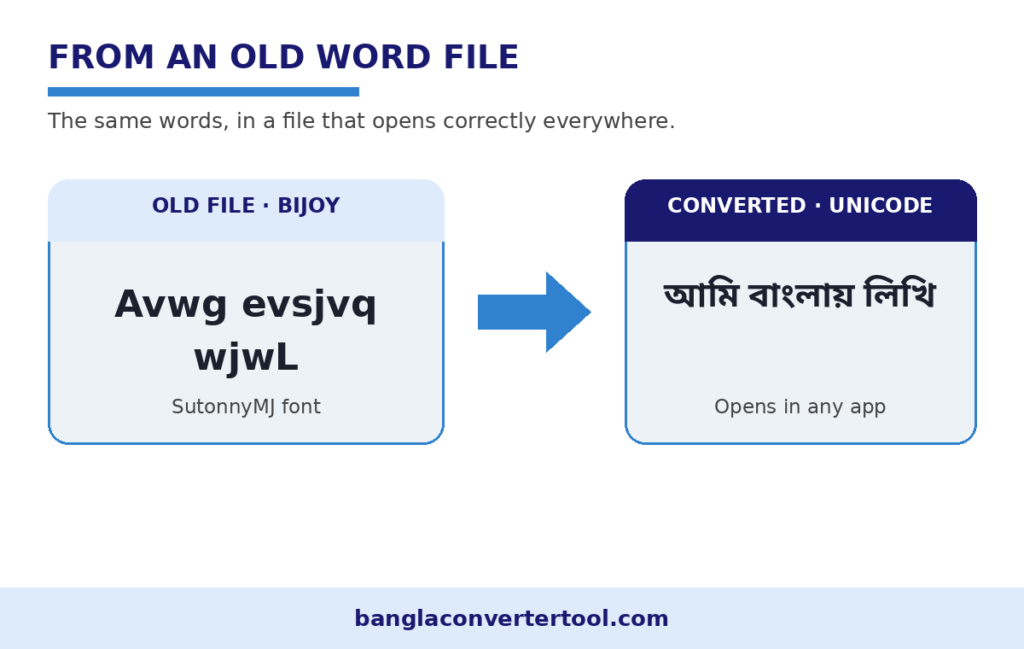
Bijoy does not store real Bangla letters. It stores English keyboard codes and depends on a font such as SutonnyMJ to draw Bangla shapes on top of those codes. A line that reads আমি বাংলায় লিখি in a Bijoy font is saved inside the file as the Latin characters “Avwg evsjvq wjwL”. As long as the SutonnyMJ font is installed and selected, Word draws the Bangla shapes and everything looks right.
Unicode works in a completely different way. Every Bangla letter has its own permanent code, and every modern device knows those codes. Phones, websites, Facebook and new versions of Word all expect Unicode. When a Bijoy file reaches a device without the right font, the device simply shows the raw stored codes, which is why you see English letters, boxes or question marks instead of Bangla.
Converting the file means rewriting those stored codes into real Unicode, letter by letter, including the conjuncts and vowel signs that make Bangla tricky. Once that is done, the text no longer depends on any special font, and it will stay readable for decades. If you want the background of the two systems, our guide to Unicode explains the difference in simple words.
Before You Start: Three Safety Steps
Step one, always work on a copy. Duplicate the file and rename the copy with the word Unicode at the end. If anything goes wrong, the original Bijoy file stays untouched and you can start again.
Step two, confirm the file really is Bijoy. Open it in Word, click inside a paragraph and look at the font box. If it shows SutonnyMJ, Bijoy or a similar ANSI font, the text is Bijoy encoded. If it shows a Unicode font such as Kalpurush and the text already reads correctly, the file needs no conversion.
Step three, install one Unicode Bangla font on the computer, for example Noto Sans Bengali, Kalpurush or Nikosh. You will need it to read the converted text. Our Bangla fonts guide explains which font suits which job.
Method 1: Convert Inside Word, Step by Step
This method suits most files and gives you full control over the result.
- Open the copy of your file in Microsoft Word.
- Press Ctrl and A to select the whole document, then Ctrl and C to copy it.
- Open our free converter and choose the Bijoy to Unicode mode.
- Paste the text into the input box with Ctrl and V. The conversion happens on its own as the text lands. You do not need to press any convert button.
- Check the output box. The Latin codes should now read as proper Bangla. For example, a line stored as “Avwg evsjvq wjwL” comes out as আমি বাংলায় লিখি.
- Copy the converted text with the Copy button above the output box.
- Return to Word and open a new blank document. Paste the converted text into it.
- Select everything again and set the font to your Unicode font, for example Noto Sans Bengali. The Bangla should now display perfectly.
- Save the new document as a .docx file with a clear name, for example Office Order 2015 Unicode.docx.
If your file is long, work chapter by chapter or page by page instead of pasting the whole document at once. Smaller pieces are easier to check, and a mistake in one part never touches the rest. Our Bijoy to Unicode converter page explains the encoding change itself in more detail if you want to understand what happens to each letter.
Method 2: Upload the Whole File to the Converter
If the document is mostly plain text, the upload route is faster than copying and pasting.
- If your file ends in .doc, open it in Word first and use Save As to save a .docx copy. The converter accepts TXT and DOCX files.
- Open the converter on our homepage and find the Upload File button near the input box.
- Choose the Bijoy to Unicode mode first, then upload your file.
- Wait for the converted text to appear in the output box.
- Use the Download DOC or Download TXT button to save the result.
- Open the downloaded file, select all the text and apply your Unicode font.
Be honest with yourself about formatting. Upload conversion is built for text, so simple documents come through beautifully. A file full of merged table cells, text boxes and floating images is safer with Method 1, converting the text in sections and rebuilding any special layout by hand.
Files That Mix Bijoy and Unicode
Many real files are mixed. The main letter may be typed in Bijoy while a quoted paragraph was pasted from a website in Unicode. Converting the whole file in one pass would damage the parts that are already Unicode, because the converter would treat them as Bijoy codes.
The safe approach is to convert only the Bijoy paragraphs. Select one Bijoy paragraph at a time, convert it, and paste the result back in place. It takes a little longer, but the finished file is fully Unicode and nothing that was already correct gets broken. If large parts of the file show boxes or scrambled letters before you even start, read our guide to fix broken Bangla text first, because the file may have an extra problem on top of the encoding.
After Conversion: A Five Minute Checklist
- Read the first page slowly. Conjunct letters are where weak conversions fail, so look at words with যুক্তাক্ষর and check that they match the original.
- Search the document for leftover Latin words that look like codes, for example “Avwg”. A converted file should contain none, apart from real English words you typed on purpose.
- Check names, dates and numbers against the original file side by side. Digits deserve special care in official documents.
- Set one Unicode font for the whole document so the file looks the same everywhere.
- Save a PDF copy for sharing. A PDF freezes the correct Bangla in place for anyone who opens it.
- Keep the original Bijoy file in an archive folder. Storage is cheap, and the original is your insurance.
Common Problems and Their Fixes
Problem: The text still shows English letters after conversion. Cause: the font is still set to SutonnyMJ, so Word is drawing Bijoy shapes over Unicode codes. Fix: select all the text and apply a Unicode font.
Problem: The file shows empty boxes on a phone. Cause: the phone received Bijoy text, and phones carry no Bijoy fonts. Fix: convert the file to Unicode first, then share it.
Problem: A few conjuncts look split or joined wrongly. Cause: very old Word versions render some Unicode conjuncts poorly. Fix: paste the text into a fresh document, or open the converted file in a current version of Word or in LibreOffice and check again.
Problem: The file was typed on a Bijoy keyboard and you need to add new lines. Cause: typing in a Bijoy layout adds new Bijoy text to a Unicode file. Fix: type the new lines with an Avro or Unicode keyboard, or type them in Bijoy in a separate note, convert that note, and paste the result in. Our Bijoy keyboard layout guide shows where every letter sits if you still work on the old layout.
Frequently Asked Questions
Old Word files are part of the written record of Bangladesh, and every year more of them become hard to read as computers move on. Converting your Bijoy files to Unicode is a one time job that protects that record for good. Start with one small file, follow the steps above, and the rest of the folder will feel easy. When you are ready, open the converter on our homepage and bring your first old file back to life.
